
Best Built-in Windows Utilities Every User Should Know

Updated: 3 days ago

Getting Started | Best Built-in Windows Tools
Many Windows users install third-party utilities for troubleshooting, performance monitoring, file management, and system maintenance without realizing that Windows already includes powerful tools for many of these tasks. Some of these utilities have existed for years, while others have quietly improved with recent Windows updates. The problem is that many users simply never discover them.
In this guide, we'll explore some of the most useful built-in Windows tools that can help diagnose problems, optimize performance, and make everyday PC management easier.
Why Built-in Windows Tools Matter
Built-in tools offer several advantages:
No additional downloads
Direct integration with Windows
Better security and reliability
Regular updates from Microsoft
No unwanted ads or bundled software
For many common troubleshooting and maintenance tasks, these tools are often all you need.
Here Are Some of the Best Built-in Windows Utilities
These built-in utilities can help with troubleshooting, performance monitoring, system maintenance, and everyday Windows management without requiring additional software.
Task Manager
Task Manager is one of the most familiar Windows utilities, but many users only use it to close frozen applications.
Modern Task Manager provides much more information, including:
CPU usage
Memory usage
Disk activity
GPU monitoring
Startup applications
Running processes
The Startup tab is particularly useful for identifying programs that slow down system boot times.
How to Open Task Manager
Press: Ctrl + Shift + Esc
Resource Monitor
Resource Monitor is one of the most underrated Windows diagnostic tools. It provides deeper insights than Task Manager and helps identify:
Disk bottlenecks
Network activity
Memory usage
CPU-intensive processes
When troubleshooting unexplained system slowdowns, Resource Monitor can often reveal the exact process causing problems.
How to Open Resource Monitor
Search: "resmon" in the Start Menu.
Reliability Monitor
Many Windows users have never heard of Reliability Monitor despite it being one of the most useful troubleshooting tools available.
It tracks:
Application crashes
Driver failures
Windows update issues
System errors
Instead of digging through complex logs, Reliability Monitor presents problems in a simple timeline view.
How to Open Reliability Monitor
Search: Reliability Monitor
or run: perfmon /rel
System Configuration (MSConfig)
MSConfig remains extremely useful for startup troubleshooting and Clean Boot operations. It allows users to:
Control startup services
Perform Clean Boot troubleshooting
Diagnose software conflicts
One important feature is the ability to hide Microsoft services before disabling third-party services for troubleshooting purposes.
How to Open System Configuration
Search: msconfig
Disk Cleanup
Although Storage Sense now handles many cleanup tasks automatically, Disk Cleanup remains a valuable tool. It can remove:
Temporary files
Windows update leftovers
Recycle Bin contents
Cached files
Many users are surprised by how much space can accumulate through temporary system files alone.
How to Access Disk Cleanup
Search: cleanmgr
Windows Memory Diagnostic
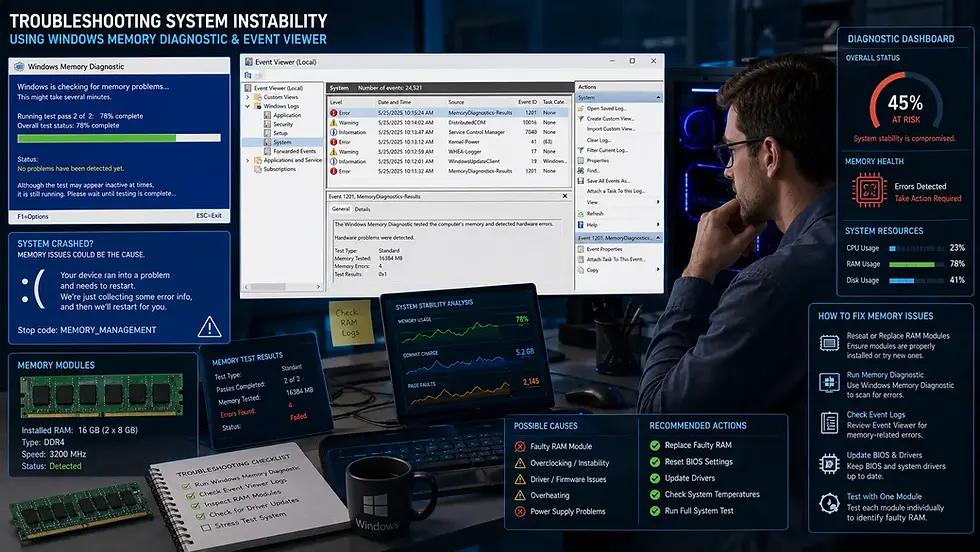
Random crashes, blue screens, and application instability can sometimes be caused by faulty RAM.
Windows includes a built-in memory testing tool that checks for memory-related errors. While advanced users may prefer specialized testing software, Windows Memory Diagnostic provides a useful first step.
How to Open Windows Memory Diagnostic
Search: "Windows Memory Diagnostic" in Windows Search Bar
Event Viewer
Event Viewer is one of the most powerful diagnostic tools in Windows. It records:
System events
Security events
Application errors
Driver issues
Although the interface can appear intimidating to beginners, it is often the first place IT professionals look when investigating system problems.
How to Open Event Viewer
Search: Event Viewer
Snipping Tool
Snipping Tool has evolved significantly in recent Windows versions. It now supports:
Screenshots
Delayed captures
Screen recording
Basic annotations
For many users, it eliminates the need for third-party screenshot applications entirely.
How to Open Snipping Tool
Press: Windows + Shift + S
Storage Sense
Storage Sense automatically helps manage disk space by removing unnecessary files. It can automatically clean:
Temporary files
Recycle Bin contents
Downloaded files (optional)
Cached system data
This tool is particularly useful on systems with limited SSD storage.
How to Access Storage Sense
Go to: Settings → System → Storage
Windows Security
Many users install third-party antivirus software immediately after purchasing a PC. However, Windows Security has improved dramatically over the years.
It Includes:
Real-time protection
Firewall management
Ransomware protection
Device security monitoring
Threat detection
For many home users, it provides sufficient protection without requiring additional security software.
A Tool Many Power Users Still Overlook
Despite being included with Windows for years, many advanced users still overlook this useful utility when diagnosing hardware and system configuration issues.
System Information
System Information provides a comprehensive overview of your hardware and software environment. You can view:
Processor details
Installed memory
BIOS version
Hardware resources
Device information
This tool is particularly useful when troubleshooting compatibility issues or checking system specifications.
How to Open System Info Utility
Search: msinfo32
When Built-in Tools Are Better Than Third-Party Alternatives
Third-party software certainly has its place, but built-in tools are often preferable when:
Diagnosing Windows-specific issues
Checking system health
Monitoring hardware usage
Managing startup programs
Cleaning temporary files
Since these tools are developed specifically for Windows, they generally integrate more reliably with the operating system.

Conclusion
Windows includes far more useful tools than many users realize. From advanced troubleshooting utilities like Reliability Monitor and Event Viewer to everyday tools like Snipping Tool and Storage Sense, these built-in features can save time, improve system maintenance, and reduce reliance on third-party software.
The next time your PC develops a problem, it may be worth checking what Windows already provides before downloading another utility. In many cases, the solution is already built into the operating system and waiting to be used.
Author: Kalyan Bhattacharjee
Category: Windows | Productivity & Learning | Tech Tutorials | Tech Reviews
Expertise: Technology Analyst & Digital Research Writer
Source: Research-based content using publicly available technical resources and industry references
📚 Keep exploring - Here are more tech blogs you’ll love:

Comments