.png)
services.msc: Manage & Optimize Windows Services like Pro

Updated: Sep 22
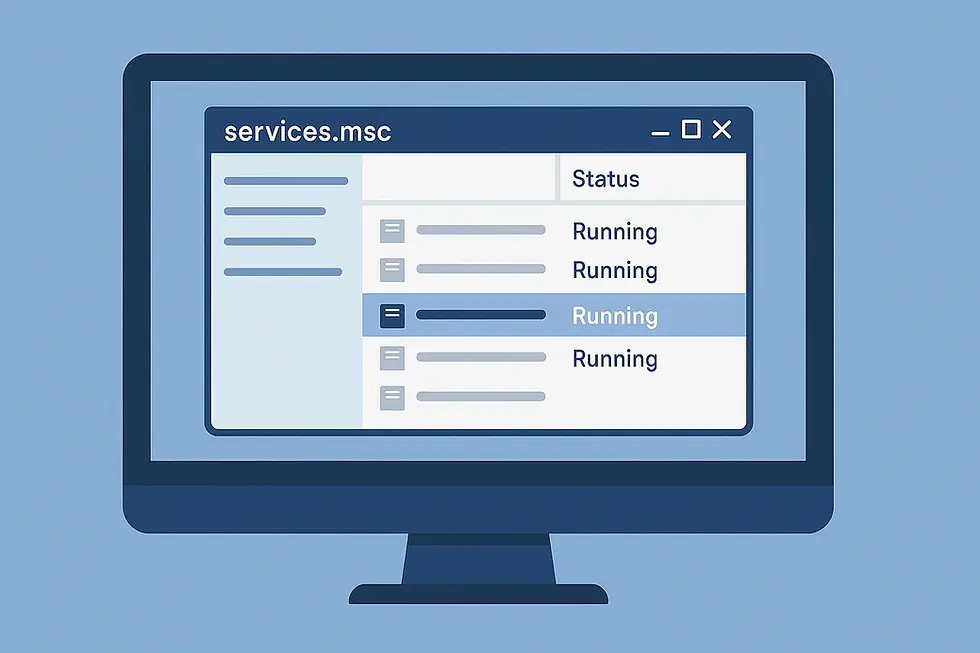
Introduction | services.msc command
Managing your Windows system effectively often requires more than just a basic understanding of settings and controls. One such powerful tool is the services.msc command. Whether you're troubleshooting a slow startup, managing background applications, or optimizing your PC's performance, services.msc can be your go-to utility.
In this blog, we'll explore what it is, what it does, and how you can use it efficiently.
What is services.msc? 🔍
services.msc is a Microsoft Management Console (MMC) snap-in that lets users view and manage all Windows services on a computer. A service is a type of application that runs in the background and performs critical functions such as network connectivity, security, printing, and much more.
This command opens the Services Manager window, offering a graphical interface to control how and when these services run.
Key Features of services.msc 🧰
services.msc provides a centralized interface to manage, and troubleshoot all background services running on a Windows system.
Service Status Management: Easily start, stop, pause, resume, or restart any Windows service.
Startup Type Configuration: Set services to start automatically, manually, or be disabled based on your needs.
Dependency Management: View which services depend on or are required by other services - crucial for troubleshooting.
Detailed Descriptions: Provides descriptions for each service to help users understand their function.
Performance Optimization: Disable unnecessary services to reduce RAM and CPU usage, especially helpful for older systems.
How to Open services.msc 💡
There are several ways to access the Services Manager:
Press Windows + R, type services.msc, and press Enter.
Open Start Menu > Search "services" > Click on Services (App).
Use Task Manager > Services Tab > Click on Open Services.
Common Uses of services.msc 🛠️
The services.msc console is commonly used to start, stop, configure, and troubleshoot background services to improve system stability and performance.
Troubleshooting Issues ✅
If your internet, printer, or audio is not working, you can check if relevant services like Windows Audio, Print Spooler, or DHCP Client are running. Restarting a stuck service often resolves common system issues without needing a full reboot.
Speeding Up Boot Time ✅
Disabling unnecessary services (like Fax, Remote Registry, etc.) can improve system boot time. This helps reduce background load and makes Windows start faster on older or low-end systems.
Managing Security Services ✅
Ensure critical services like Windows Defender, Firewall, or Security Center are active to protect your system. Disabling these services can expose your PC to malware and security threats.
Customizing Startup Behavior ✅
Set non-critical services to Manual to free up system resources. This allows services to run only when needed, improving overall system performance and stability.
Caution: Handle With Care! 🔐
While services.msc is a powerful utility, disabling essential services can cause your system or applications to malfunction. If unsure, research the service or consult documentation before making changes.
Recommended Services to Consider Disabling (with caution)
Remote Registry - Security risk if enabled.
Fax - Usually unnecessary for personal use.
Secondary Logon - Only needed for advanced multi-user features.
Offline Files - Rarely used outside enterprise networks.

Key Takeaways 🧭
Services.msc is an essential command for anyone who wants to dive deeper into the internal workings of a Windows system. Whether you're a casual user or an IT pro, mastering this tool can significantly improve your system's performance, stability, and security.



Comments