.png)
How to Use Apple Intelligence on iPhone: Best Features to Try

Updated: Sep 16

At a Glance | Apple Intelligence Features
Apple Intelligence has gradually become one of the most interesting parts of the modern iPhone experience. Instead of being a separate AI chatbot that you open when you need it, Apple's approach puts AI directly into everyday features such as writing, notifications, photos, calls, Siri, and visual recognition.
With newer iOS releases, Apple has also expanded what Apple Intelligence can do. Some features are obvious, while others are tucked into apps and system controls where they're surprisingly easy to overlook. If you have a compatible iPhone, here are some of the best Apple Intelligence features worth trying and where they can actually make a difference.
What Is Apple Intelligence?
Apple Intelligence is Apple's personal intelligence system built into supported Apple devices. It combines on-device processing with Apple's Private Cloud Compute infrastructure to handle AI-powered tasks while emphasizing privacy. On iPhone, Apple Intelligence can help with writing, notifications, images, Siri interactions, visual understanding, translation, and several other tasks.
However, there is an important catch: Apple Intelligence isn't available on every iPhone. Compatibility depends primarily on the hardware, and some features also vary by language and region. That means having the latest version of iOS doesn't automatically mean every Apple Intelligence feature will appear on your device.
How to Enable Apple Intelligence
If your iPhone supports Apple Intelligence, you can generally find the relevant controls under: Settings → Apple Intelligence & Siri. From there, you can enable Apple Intelligence and configure available features.
The exact settings and feature names can change between iOS releases, so don't be surprised if your menu looks slightly different from screenshots published for an earlier version.
What You Need to Use Apple Intelligence
Before trying the features below, make sure your iPhone supports Apple Intelligence.
Generally, Apple Intelligence on iPhone requires:
A compatible iPhone model
A supported version of iOS
Apple Intelligence enabled in Settings
A supported language and region for the feature you're using
Sufficient device storage for the required models
Apple's supported-device requirements can change as new features and software versions arrive, so it's worth checking your device's current compatibility rather than assuming that every newer iPhone supports everything.
Best Apple Intelligence Features to Try
Apple Intelligence offers several useful tools that can make everyday tasks easier, from writing and photo editing to translation, visual searches, and smarter Siri features.
Writing Tools
One of the easiest Apple Intelligence features to try is Writing Tools. It is integrated into places where you type, allowing you to rewrite, proofread, summarize, or change the tone of text without manually moving the content into another AI application.
Depending on the app and context, you can use it to:
Proofread text
Rewrite sentences
Make writing more concise
Change the tone
Summarize content
Turn text into a list or key points
This is particularly useful for emails, messages, notes, and other everyday writing.
Why It's Useful
The biggest advantage is convenience. You don't have to copy your text, open an AI app, paste it, wait for a response, and copy the result back. Writing Tools can operate directly where you're already writing.
For someone who writes a lot of emails or messages from an iPhone, this can save a surprising amount of time.
Notification Summaries
If your iPhone receives dozens of notifications every day, notification summaries can be one of the most useful Apple Intelligence features. Instead of reading every notification individually, Apple Intelligence can provide a condensed summary of groups of notifications.
For example, several messages from a group conversation can be summarized so you can understand the general context without opening every individual message. This becomes particularly useful when you return to your phone after being away for a while.
A Small but Important Limitation
AI-generated summaries aren't guaranteed to be perfect. A summary is a convenience, not an authoritative representation of everything contained in the original notifications. If something is important, open the original message rather than relying solely on the summary.
Reduce Interruptions With Focus
Apple Intelligence can also work with Focus through Reduce Interruptions, which attempts to identify notifications that may require immediate attention while filtering out less important ones. Instead of manually deciding which apps are allowed through a Focus mode, the system can use intelligence to prioritize certain notifications.
This is a good example of where Apple's AI approach differs from simply asking a chatbot a question. The AI is working quietly in the background to help manage information rather than generating a visible response.
Clean Up Unwanted Objects in Photos
The Clean Up tool in Photos is one of the more visually impressive Apple Intelligence features. It can identify distracting objects in a photograph and help remove them. Imagine taking a beautiful travel photograph and discovering that a random person, object, or visual distraction appears in the background.
Instead of opening a separate photo-editing application, you can use Clean Up to remove the unwanted element.
When Clean Up Works Best
It tends to be most useful for relatively simple distractions in backgrounds. Results can vary depending on the photograph, the object being removed, and the surrounding details. AI-generated edits can occasionally look unnatural, so it's always worth checking the final image carefully.
Genmoji
If ordinary emojis aren't expressive enough, Genmoji lets you create custom emoji-like characters using a description. You can describe what you want, and Apple Intelligence generates a personalized Genmoji that you can use in supported contexts.
For example, instead of searching through hundreds of emojis for something close to what you're trying to express, you can create something more specific. It's not necessarily a productivity feature, but it demonstrates one of the more playful aspects of Apple's generative AI system.
Image Playground
Image Playground lets you create images using text prompts and Apple's supported visual-generation capabilities. You can experiment with different concepts and styles without needing a traditional image-editing application.
The feature is designed more for casual and creative generation than professional image production, but it's still fun to explore. You can use it for things such as:
Custom illustrations
Personal graphics
Creative concepts
Images for conversations
Playful visual experiments
The results are intentionally geared toward Apple's visual styles rather than trying to replicate every type of photographic or artistic generation available from dedicated AI image generators.
Image Wand
Another interesting image-generation feature is Image Wand, which can turn rough sketches or surrounding text into more polished images in supported apps such as Notes. This can be particularly interesting if you're brainstorming.
You could roughly sketch an idea, select it with Image Wand, and let Apple Intelligence transform the concept into a more refined visual. It's a good example of AI being used as a creative assistant rather than simply generating something from a blank prompt.
Visual Intelligence
Visual Intelligence is one of the most useful Apple Intelligence features if you frequently want to understand or search for things around you. Using the iPhone camera, Visual Intelligence can help identify objects, understand text, summarize information, and provide additional context about what you're looking at.
For example, you could point your iPhone at:
A plant
A product
A restaurant menu
A landmark
A document
A piece of text
Depending on the situation, the feature can provide information or let you take further action.
Visual Intelligence Goes Beyond the Camera
With newer iOS versions, Apple has expanded Visual Intelligence beyond simply pointing the camera at something. On supported devices, it can also understand content displayed on your iPhone's screen.
That means a screenshot, webpage, image, or other on-screen content can become something you can investigate using AI. This is particularly useful because it removes the extra step of manually explaining to an AI tool what you're looking at.
Ask ChatGPT Through Siri and Writing Tools
Apple Intelligence can also integrate ChatGPT into supported experiences. If Siri can't adequately answer certain requests, you may be offered the option to use ChatGPT. You can also use ChatGPT through supported Apple Intelligence tools, including some Writing Tools and visual experiences.
The important distinction is that ChatGPT integration is an optional extension of Apple's system rather than Apple Intelligence simply being ChatGPT under another name. Apple uses its own models for many Apple Intelligence tasks and can hand certain requests to ChatGPT when appropriate and when the user permits it.
Smarter Siri
Siri is another area where Apple Intelligence is gradually changing the iPhone experience. Apple's newer Siri capabilities are designed to better understand natural language, tolerate corrections, and maintain context across requests.
For example, you don't always need to phrase commands in exactly the way Siri expects. You can correct yourself or make follow-up requests more naturally.
Siri's On-Screen Awareness
Apple has also been working toward a more context-aware Siri that can understand what's happening on your screen and take actions based on information within apps. This is potentially one of the biggest long-term changes to Siri.
However, not every announced Siri capability is necessarily available at the same time. Apple has introduced its broader Apple Intelligence Siri improvements progressively, so availability can depend on the iOS version and device.
Summaries in Mail and Messages
Apple Intelligence can summarize certain emails and messages so you can understand the important information more quickly.
For someone dealing with a busy inbox, this can be useful when you need to quickly determine: What is this about? Do I need to respond? Is there anything important here?
Rather than reading every word immediately, a summary gives you a quick starting point. Again, treat the summary as a convenience rather than a replacement for reading important or sensitive communications in full.
Priority Messages in Mail
Apple Intelligence can help identify priority emails and surface messages that may deserve more immediate attention. This is particularly useful if your inbox contains a mixture of newsletters, promotions, automated notifications, and genuinely important messages.
Instead of treating every incoming email equally, the system attempts to help you focus on what matters. For people with busy inboxes, this can be more useful than some of the flashy generative AI features.
Smart Reply
Apple Intelligence can suggest responses in supported communication apps. Rather than writing a complete response from scratch, you can use suggested replies as a starting point. This works best for routine conversations where a short response is sufficient.
For important personal or professional messages, however, it's worth reviewing the suggested response before sending it. AI can understand the general context without necessarily understanding your exact intent.
Call Recording and Transcription
On supported versions of iOS, Apple provides call recording and transcription capabilities that can make it easier to preserve important conversations. Apple Intelligence can help summarize recorded calls and highlight relevant information where supported.
This could be useful for remembering:
Instructions
Appointments
Business discussions
Important details from a conversation
However, call-recording laws vary by location. Make sure you follow applicable consent and privacy requirements before recording conversations.
Live Translation
Apple Intelligence also contributes to Apple's Live Translation features. Supported communication experiences can translate conversations and messages between different languages, helping reduce the friction of communicating with someone who speaks another language.
This can be particularly useful while traveling or communicating internationally. Apple's translation capabilities are still subject to supported languages, regions, and devices, so the exact experience can vary.
ChatGPT-Powered Visual Understanding
One of the more interesting combinations is using Visual Intelligence with ChatGPT. Suppose your iPhone recognizes something but you want a more detailed explanation. Instead of manually taking a picture and uploading it to ChatGPT, supported Apple Intelligence experiences can offer ChatGPT as an additional source for understanding what you're seeing.
This creates a useful workflow: See Something → Visual Intelligence → Ask for More Information → ChatGPT. It's a good example of how Apple is positioning third-party AI as a complement to its own intelligence system.
Which Apple Intelligence Features Are Worth Using?
Not every feature will be equally useful. If you want to start with the features that have the most practical everyday value, I'd recommend:
For Productivity
Writing Tools
Notification Summaries
Mail summaries
Priority messages
Smart Reply
For Photography
Clean Up
Visual Intelligence
For Communication
Live Translation
Smart Reply
Call transcription and summaries
For Creativity
Genmoji
Image Playground
Image Wand
For AI Assistance
Smarter Siri
Visual Intelligence
ChatGPT integration
The best features ultimately depend on how you use your iPhone. Someone who receives hundreds of emails may get more value from Mail summaries than Genmoji, while someone who frequently travels internationally may find Live Translation considerably more useful.
Privacy: How Does Apple Intelligence Handle Your Data?
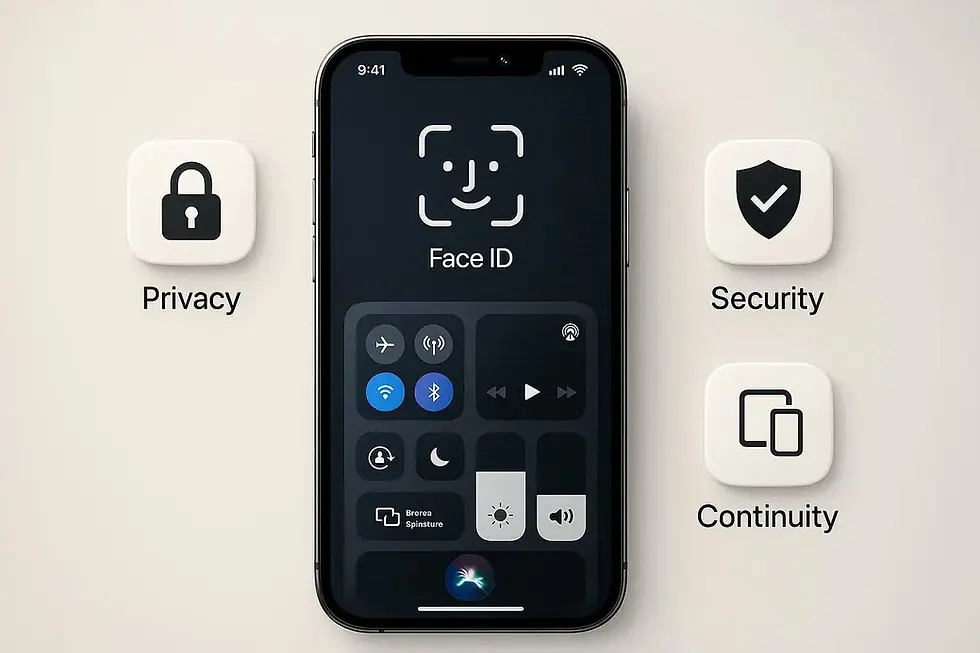
Privacy is one of Apple's major selling points for Apple Intelligence. Many AI tasks are designed to run on-device, meaning the processing happens directly on the iPhone when the device has sufficient capability. For more demanding requests, Apple uses Private Cloud Compute, which is designed to process requests on Apple's servers while applying privacy protections. Apple says that data sent to Private Cloud Compute isn't stored or made accessible to Apple, and that its systems are designed so the company cannot access the user's data.
Apple has also published technical information about Private Cloud Compute so that researchers can inspect aspects of its security and privacy architecture. That said, privacy isn't something you should evaluate solely from a marketing slogan. It's worth understanding which features run locally, which may use cloud processing, and when third-party services such as ChatGPT are involved.

Key Takeaways
Apple Intelligence is most interesting when you stop treating it as a single AI feature and start looking at how it is being integrated throughout iOS. Writing Tools, Visual Intelligence, Clean Up, notification summaries, Live Translation, smarter Siri, and AI-powered communication features can all reduce small amounts of friction in everyday tasks. Some features are genuinely useful, while others are more experimental or simply fun to play with.
The bigger story is that Apple is moving AI from something you deliberately open into something that can operate quietly across the operating system. If Apple continues expanding that approach while keeping processing private and tightly integrated with the iPhone, Apple Intelligence could eventually become less of a feature and more of a fundamental part of how iOS works.
Frequently Asked Questions
Here are some common questions and answers to help clarify the key points, features, benefits, and practical aspects covered in this guide.
Does Apple Intelligence work on every iPhone?
Ans: No. Apple Intelligence requires compatible hardware, and availability also varies by software version, language, and region.
Is Apple Intelligence free?
Ans: Apple Intelligence is integrated into supported Apple devices and does not require a separate Apple Intelligence subscription. However, some third-party integrations, services, or future features may have their own requirements.
Does Apple Intelligence use ChatGPT?
Ans: It can. Apple has integrated ChatGPT into certain Apple Intelligence experiences, including supported Siri, Writing Tools, and visual features. Users can control whether ChatGPT is used for supported requests.
Can Apple Intelligence work without an internet connection?
Ans: Some Apple Intelligence tasks can run directly on the device, while others require cloud-based processing or online services. Therefore, not every Apple Intelligence feature will work offline.
How do I know if my iPhone supports Apple Intelligence?
Ans: Check Settings → Apple Intelligence & Siri. If Apple Intelligence isn't available, your iPhone may not meet the hardware, software, language, or regional requirements for the feature.
Legal Disclaimer: Apple Intelligence features, availability, supported devices, languages, and requirements may change with software updates and vary by region. Some AI-generated results may be inaccurate, so always verify important information before relying on them. Apple, Apple Intelligence, iPhone, and the Apple logo are trademarks of Apple Inc. Any Apple names, logos, images, or product references used in this article are for identification, reference, and illustrative purposes only and do not imply any affiliation with, sponsorship by, or endorsement from Apple Inc.


Comments