
Apple Watch + iPhone: How to Maximize Sync and Productivity in 2026

Updated: Sep 21

Overview | iPhone - Apple Watch Sync
If you own both an Apple Watch and an iPhone, you're already halfway into one of the smoothest tech ecosystems out there. But are you really using them to their full potential?
From fitness tracking and notifications to smart automation and continuity features, this guide walks you through the best ways to sync your Apple Watch and iPhone for maximum productivity, convenience, and battery life. Let’s unlock the power of perfect sync.
What Syncing Actually Means 🔄
When paired properly, your Apple Watch and iPhone work together to:
Share notifications
Track health and fitness data
Handle calls and messages
Control media and smart devices
Unlock MacBooks and secure apps
It’s not just about mirroring it’s about expanding what each device can do.
Top Features You Unlock with Apple Watch + iPhone Sync
Syncing your Apple Watch with your iPhone unlocks powerful health, notification, and connectivity features. Together, they enhance productivity and make daily tasks more seamless.
Ensure Seamless Pairing 📲
Start with the basics:
Keep both devices updated (iOS + watchOS)
Open the Watch app on your iPhone
Follow the pairing steps if not already connected
Enable iCloud sign-in with the same Apple ID on both devices
⚠️ If features aren’t syncing properly, try unpairing and re-pairing via the Watch app.
Sync & Customize Notifications Smartly 🔔
Your Apple Watch can mirror iPhone notifications, but it’s best to fine-tune them:
How to Optimize:
Go to Watch app > Notifications
Choose which apps to mirror
Turn off unnecessary alerts (like spammy apps)
Use Focus Modes on iPhone to limit distractions
💡 Custom alerts on your wrist reduce phone pickups dramatically.
Handle Calls and Messages Efficiently 📞
You can take or reject calls and reply to messages straight from your wrist.
Pro Tips:
Use Quick Replies for faster messaging
Dictate responses via Siri when typing isn’t practical
Use the Walkie-Talkie feature with other Apple Watch users
🎙️ For quiet environments, switch to Scribble or text input.
Max Out Fitness & Health Sync 💪
One of the best use cases for the Apple Watch is health.
Syncs Automatically:
Steps, calories, and workouts via Apple Health
Heart rate, ECG, and sleep tracking
Mindfulness and breathing exercises
Fall detection and emergency SOS
Best Practices:
Use Fitness+ for guided workouts
Sync third-party health apps like Strava or MyFitnessPal
View Health Trends on your iPhone’s Health app
🧘 You can set fitness goals and get daily motivation on both devices.
Sync Reminders, Calendar, and Notes 🗓️
Your Watch can show:
Daily events
Upcoming meetings
Location-based reminders
Shopping lists and synced Apple Notes (via Siri)
Setup:
Use iCloud to sync Notes and Reminders
Customize Watch complications to show your calendar or tasks
🕒 This turns your watch into a wearable planner.
Control Music, Podcasts, and Media 🎶
No need to pull out your iPhone when you’re working out or cooking.
Watch Can Control:
Music playback (Apple Music, Spotify)
Podcasts
Volume and AirPlay output
Media on Apple TV or HomePod
🎧 You can also store playlists directly on your Watch for offline playback with AirPods..
Use Continuity & Handoff Features 📍
Apple’s ecosystem shines here:
Handoff: Start an email or message on Watch, finish on iPhone
Unlock your Mac when your Watch is nearby
AirPlay & AirDrop are seamlessly accessible
Use Watch as a viewfinder when taking photos from iPhone tripod setups
🔄 These little features save seconds but add up to serious productivity.
Optimize Battery Across Devices 🔋
Battery sync is subtle but important.
Tips:
Enable Low Power Mode during workouts or travel
Turn off background app refresh for unnecessary Watch apps
Use Watch Charging Reminders from iPhone
Use iPhone’s Battery Widget to see Watch battery level
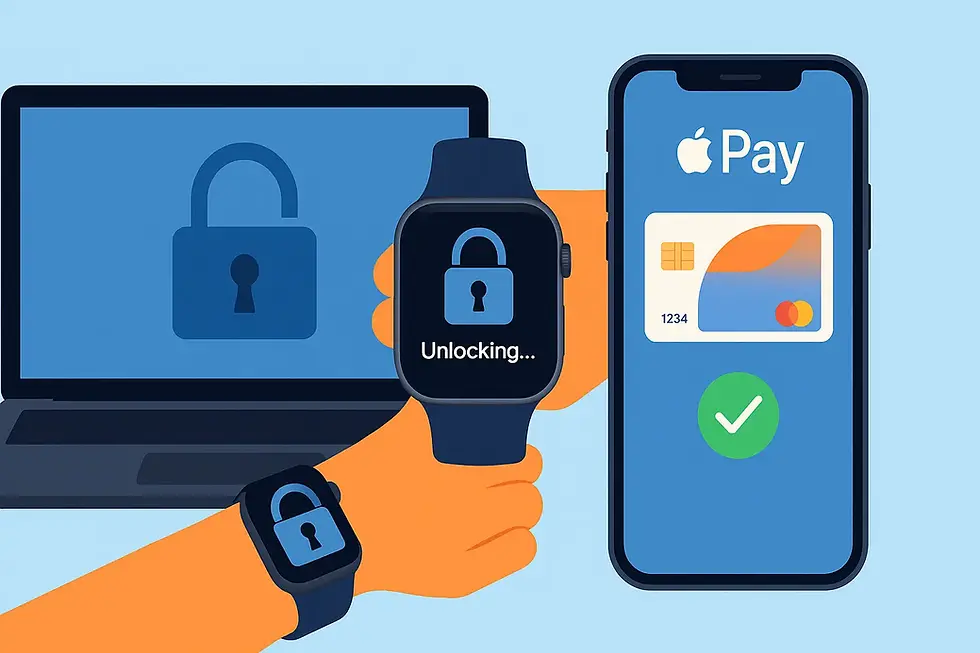
Use Apple Watch for Security & Authentication 🔐
Auto-unlock your Mac
Approve App Store purchases or Apple Pay transactions
Enable two-factor authentication prompts directly on your wrist
Unlock your iPhone while wearing a mask (watchOS 7.4+)
🔒 This makes your Watch a wearable security key.
Wrapping Up | Watch - iPhone Sync 🏁
When your iPhone and Apple Watch are in perfect sync, they become more than just two devices they become one intelligent system.
Whether you’re trying to stay fit, save time, or simply streamline your daily routine, learning how to sync your Apple Watch and iPhone effectively will help you get the most out of both devices.
Common Questions About Apple Watch and iPhone Sync
Here are some common questions about Apple Watch and iPhone synchronization, including connectivity, pairing, Handoff, Family Setup, and troubleshooting.
Do I need internet for Apple Watch and iPhone sync to work?
Ans: Not for every sync function. Apple Watch and iPhone can communicate through Bluetooth and Wi-Fi, while some features and cloud-based data require an internet connection.
Can I use an Apple Watch with someone else's iPhone?
Ans: An Apple Watch is normally paired with one iPhone at a time. If you're setting up a watch for a family member, Apple’s Family Setup can allow that person to use the watch with their own Apple Account without having their own iPhone.
How often should I re-sync my Apple Watch and iPhone?
Ans: You generally don't need to manually re-sync them. Once paired, they communicate automatically when connected. Keeping both devices updated, charged, and within a suitable connection range helps maintain reliable syncing.
Can I use Handoff between my Apple Watch and iPhone?
Ans: Yes. Handoff lets you continue supported tasks from your Apple Watch on your iPhone. The watch must be connected to its paired iPhone, and Handoff needs to be enabled.
What should I do if my Apple Watch stops syncing with my iPhone?
Ans: Check that Bluetooth and Wi-Fi are enabled, keep both devices nearby, and make sure they're updated. If the connection still fails, restarting the devices or checking the Apple Watch app for pairing issues can help.
Can I pair my Apple Watch with a new iPhone?
Ans: Yes. Apple recommends backing up your old iPhone, updating both devices, and then using the Apple Watch app on the new iPhone to complete the pairing and restore process.
Can an Apple Watch work without being near my iPhone?
Ans: Some Apple Watch features can work independently, particularly on supported cellular models, although certain features still depend on the paired iPhone. Family Setup also provides independent functionality for supported watches.


Comments