.png)
Wondershare Filmora 16 Review: Features, Pricing & Guide (2026)

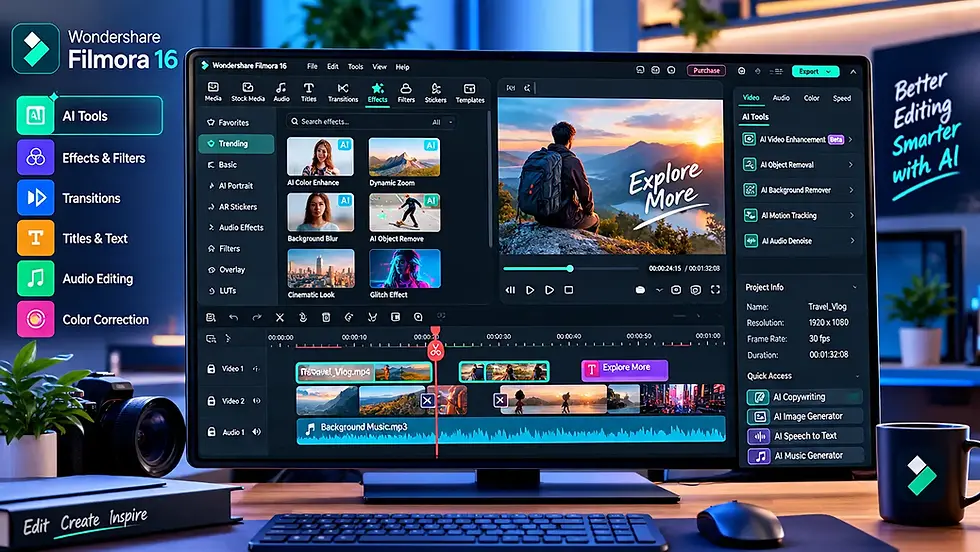
Let's Take a Closer Look | Wondershare Filmora 16 Review
Creating engaging videos can be challenging when you have to manage clips, synchronize audio, add subtitles, apply transitions, and polish the final result. Professional editing software can offer extensive control, but its complex interfaces and workflows may overwhelm beginners and casual creators. That's where Wondershare Filmora 16 comes in. It combines a timeline-based video editor with creative effects, audio tools, and AI-powered features designed to simplify everyday editing.
Whether you're producing YouTube videos, tutorials, social media content, or product demonstrations, Filmora aims to make the process more approachable without removing essential editing controls. In this guide, we'll explore Filmora 16's key features, practical applications, pricing considerations, and limitations to help you decide whether it's the right video editor for your needs.
What Is Wondershare Filmora 16?
Wondershare Filmora is a video editing application designed for creators who want an accessible way to produce polished videos. It combines standard editing tools with effects, templates, audio features, and AI-assisted workflows in one application. Unlike basic video trimmers, Filmora supports a more complete editing process, from organizing footage and arranging clips on a timeline to adding titles, adjusting colors, refining audio, and exporting the finished video.
Filmora 16 also introduces features such as camera tracking, AI media analysis, 360-degree video reframing, smart text correction, color masks, and multi-source recording. These additions focus on making specific editing tasks more efficient.
Why Filmora 16 Is Worth Considering
Choosing a video editor isn't just about the number of effects it offers. The real question is whether the software helps you complete projects efficiently while giving you enough control over the final result.
Filmora brings several useful capabilities together:
Accessible editing workflow: Arrange footage, audio, titles, and effects on a timeline.
Creative assets: Add transitions, filters, text styles, and other visual elements.
AI-assisted tools: Reduce manual work on selected tasks, such as media organization, captions, and subject tracking.
Audio editing: Combine music, narration, and other sound elements to improve the finished video.
Multiple content formats: Prepare videos for different publishing platforms and use cases.
These features make Filmora worth considering if you want more flexibility than a basic editor but don't necessarily need the complexity of a high-end professional post-production workflow.
Key Features of Wondershare Filmora 16
Explore the AI-powered tools in Filmora 16 that simplify editing tasks, streamline workflows, and help creators produce polished videos with less manual effort.
AI-Powered Video Editing Tools
AI can help with repetitive editing tasks, allowing creators to spend more time shaping the story and less time performing routine adjustments. Filmora includes several AI-assisted capabilities, although availability and usage limits can depend on the feature and subscription plan.
Some useful examples include:
AI Media Analysis: Helps organize footage by identifying subjects, scenes, and other content, making relevant clips easier to find.
AI Speech-to-Text: Converts supported speech into captions or text for editing.
AI Smart Cutout: Helps isolate a subject or remove selected background elements.
AI Video Enhancer: Can improve video clarity and upscale supported footage, with results depending on the source material.
AI-assisted editing: Helps simplify selected creative tasks and workflows.
AI tools can save time, but they aren't a replacement for reviewing the final edit. Captions may need corrections, enhancement can produce imperfect results, and complex footage may require manual adjustments.
Camera Tracking for Moving Subjects
Keeping a moving person or object in the right part of a frame can require repeated manual adjustments. Filmora 16's camera-tracking feature can track a selected subject and help maintain framing as it moves. This can be useful for product demonstrations, creator videos, tutorials, and other footage where the subject's position changes.
Tracking quality depends on factors such as subject visibility, movement, and background complexity. It's still important to review the result and make adjustments where necessary.
Timeline Editing and Creative Effects
Filmora provides a timeline-based editing workflow, allowing you to arrange video clips, audio, titles, and effects in a structured sequence.
You can use these tools to:
Trim unwanted sections and split clips.
Arrange scenes in the desired order.
Add transitions between shots.
Insert titles, captions, and text overlays.
Apply filters and color adjustments.
Combine music, narration, and other audio.
This flexibility is useful when a video needs more than simple trimming. For example, a YouTube tutorial may require screen recordings, voice-over, labels, and transitions, while a product video might combine close-ups, demonstrations, background music, and explanatory text.
Color Correction and Color Masks
Color correction helps make footage look more consistent and visually appealing. It can be particularly useful when clips were recorded under different lighting conditions. Filmora offers color-adjustment tools, and its version 16 color-mask feature allows selected areas of an image to be adjusted without applying the same correction to the entire frame.
For instance, you might want to adjust the appearance of a subject or refine the sky without changing every other part of the shot. The result depends on the footage and the adjustments you make, so review the video on a suitable display before exporting it.
Screen Recording and Multi-Source Recording
Screen recording is useful for software tutorials, demonstrations, online lessons, troubleshooting guides, and gaming content. Filmora supports screen-recording workflows, while its version 16 multi-source recording feature can capture screen, camera, microphone, and system audio sources in a synchronized session.
This can reduce the need to assemble separately recorded material from scratch. It's especially relevant to educators, YouTubers, remote trainers, and software reviewers. Before recording, check your microphone levels, capture settings, available storage, and system performance to avoid unnecessary problems during editing.
360-Degree Video Reframing
If you work with compatible 360-degree footage, Filmora 16's reframing tools can help adjust the viewing angle and create conventional shots from immersive recordings. This can be useful when you want to repurpose 360-degree footage for a standard video format. However, the final result depends on the original recording, the chosen perspective, and how the footage is reframed.
Titles, Transitions, Templates, and Effects
Visual presentation matters, especially for social media, product demonstrations, and promotional videos. Filmora includes creative elements such as titles, transitions, filters, stickers, and preset templates. These can help you establish a consistent style without designing every element from scratch.
Templates are a useful starting point, but using too many effects can make a video feel cluttered. Choose elements that support the message rather than distract viewers from it.
What Can You Create With Filmora 16?
Filmora's combination of timeline editing, audio controls, effects, and AI-assisted tools makes it suitable for several types of projects.
YouTube Videos and Creator Content
Edit talking-head videos, tutorials, reviews, explainers, and other creator content by combining footage, screen recordings, voice-overs, titles, and background music.
Social Media Videos
Prepare short-form videos and promotional clips for supported social platforms. Use captions, transitions, text overlays, and reframing tools where appropriate for the intended format.
Product Demonstrations and Reviews
Show product details, combine close-up footage with narration, highlight important features, and add labels that make demonstrations easier to follow.
Educational Content and Software Tutorials
Combine screen recordings, webcam footage, narration, and captions to create lessons or step-by-step demonstrations.
Personal and Travel Videos
Bring together photos, clips, music, transitions, and color adjustments to create travel highlights, event videos, and personal projects. The most suitable workflow depends on the type of content you produce, the complexity of your edits, and your computer's capabilities.
How to Get Started With Filmora 16
You don't need to master every feature before creating your first video. Start with a small project and gradually explore the more advanced tools.
Step 1: Download and Install Filmora
Visit the official Wondershare Filmora website and download the version compatible with your computer. Check the current system requirements before installing it.
Step 2: Import Your Media
Create a project and import the video clips, images, and audio files you want to use. Keeping your source files organized can make the editing process easier.
Step 3: Arrange Clips on the Timeline
Place clips in the intended order, trim unnecessary sections, and split footage where needed. Build the basic structure of the video before adding decorative effects.
Step 4: Add Audio, Titles, and Effects
Add narration or music, include titles and captions where useful, and apply transitions or color adjustments. Review the timing to make sure the audio and visuals work together.
Step 5: Preview and Export
Watch the complete video before exporting. Check for missing clips, incorrect captions, audio problems, awkward transitions, and other issues. Choose an export format, resolution, and settings appropriate for your intended platform. If the project is important, keep a backup of the original footage and project files.
Free Version vs. Paid Filmora Plans
Filmora offers a free option and paid plans, but the exact benefits depend on the current plan, platform, and region. Check the official pricing page before purchasing.
Feature | Free Option | Paid Plans |
Explore editing tools | Available, subject to current limits | Available, depending on plan |
Export without watermark | Restrictions may apply | Included in eligible plans |
AI tools and credits | Limited or feature-dependent | Allowances depend on plan |
Creative assets | Availability may be limited | Access depends on plan and asset licensing |
Version updates | Check current terms | Depends on the license or subscription |
Best suited for | Trying the workflow | Regular editing and eligible paid features |
Important: Do not assume every AI feature, premium effect, or creative asset is unlimited with a paid license. Some features use AI credits, and some asset libraries may require a separate subscription. Review the current terms carefully.
The Honest Truth: Where Filmora 16 May Fall Short
No video editor is ideal for every creator. Filmora's accessibility is appealing, but there are some practical considerations to understand before committing to a paid plan.
AI feature limits: Some AI tools use credits or have plan-specific restrictions. Frequent use can affect the value you get from a subscription.
Extra costs for creative assets: Certain effects, templates, or asset libraries may require separate purchases or subscriptions.
System performance: Editing high-resolution footage, applying complex effects, and processing AI features can require substantial computing resources. Performance varies with your hardware and project.
Learning still takes time: The interface is designed to be approachable, but producing polished videos still requires practice, good editing decisions, and attention to detail.
Plan and upgrade restrictions: Subscription and perpetual-license terms can differ, particularly regarding future major versions and included features. Read the license details before buying.
These limitations don't necessarily make Filmora a poor choice. They simply mean you should evaluate the software against your actual editing needs instead of choosing it based on a feature list alone.
Is Wondershare Filmora 16 Worth It?
Filmora 16 is worth considering if you want an accessible video editor that combines everyday editing tools with AI-assisted features and creative effects.
It may be a good fit for:
YouTubers and independent content creators.
Beginners moving beyond basic video editing.
Educators creating tutorials and training videos.
Small businesses producing product demonstrations or promotional content.
Users who want screen recording and video editing in a connected workflow.
It may be less suitable if you need a highly specialized professional workflow, depend heavily on particular advanced features, or want unlimited access to every AI tool and premium asset without additional costs.
Our verdict: Filmora 16 offers a practical balance of approachable editing and creative flexibility. Its value depends on which features you use, the performance of your computer, and whether the current license fits your budget and workflow. Try the available free option where possible, then compare the paid plans before making a decision.

Closing Notes
If you're looking for a video editor that combines accessible editing tools, creative effects, and AI-assisted workflows, Wondershare Filmora 16 is worth exploring. Start with a small project, test the tools relevant to your content, and confirm that your computer can handle your intended workload. Before purchasing, compare the current plans, AI credit allowances, creative-asset costs, and upgrade policy.
That way, you'll know what you're paying for and whether Filmora fits your long-term editing needs.
Frequently Asked Questions About Wondershare Filmora 16
Here are some common questions about Filmora 16, including its AI features, free version, export options, and suitability for different creators.
Is Wondershare Filmora 16 good for beginners?
Ans: Filmora is designed to make video editing approachable, with a timeline interface, templates, effects, and guided workflows. Beginners may still need time to learn editing basics and understand the available tools.
Is Filmora 16 free to use?
Ans: Filmora offers a free option, but export restrictions and access to certain features may apply. Check the current official terms to understand what is included before starting a project.
Does Filmora 16 support AI video editing?
Ans: Yes, Filmora 16 includes AI-assisted features such as media analysis, camera tracking, smart text correction, and other tools. Feature availability and usage limits can depend on the tool and plan.
Can Filmora 16 create YouTube videos?
Ans: Yes, You can use it to edit footage, add narration and titles, create tutorials, and export videos in supported formats. Select export settings appropriate for your intended publishing platform.
Does Filmora 16 export videos without a watermark?
Ans: Eligible paid plans include watermark-free exports. The free option may have export restrictions, so check the current plan details before completing a project you intend to publish.
Do Filmora's AI features require additional credits?
Ans: Some AI features use credits or have usage limits. The allowance depends on the plan and feature, so review the current pricing details if you expect to use AI tools frequently.
Is Filmora 16 worth paying for?
Ans: It can be worthwhile if its editing tools and AI features match your workflow and save you enough time. Try the available free option, identify which features you actually need, and compare the current license terms before purchasing.
Affiliate Disclaimer: This article contains affiliate links, which means Fintech Shield may earn a commission if you purchase a product through these links, at no additional cost to you. These commissions help support our website and allow us to continue providing helpful technology guides, reviews, and tutorials. Our content aims to provide honest, informative, and unbiased information to help you make informed decisions. We recommend evaluating the product's features, pricing, and terms before making a purchase.


Comments