
netsh winsock reset: How to Fix Network Problems in Windows


Overview | netsh winsock reset Command
Are you experiencing internet connection problems on your Windows PC? Perhaps your browser cannot open websites, certain applications cannot connect to the internet, or your connection stopped working after installing new software. One troubleshooting command that may help is netsh winsock reset. It resets an important part of Windows' networking configuration and can resolve problems caused by corrupted Winsock settings.
In this guide, you'll learn what the command does, how to run it in Windows 10 and Windows 11, when to use it, and what to try if your internet connection still doesn't work.
What Is the netsh winsock reset Command?
The netsh winsock reset command resets the Windows Sockets (Winsock) catalog to a clean state. Winsock is a Windows networking component that allows applications to communicate with network services. Some software, including certain VPNs and security applications, can install networking components that interact with Winsock. If these components or their configuration become corrupted, you may experience connectivity problems.
Running this command removes custom Winsock Layered Service Provider entries and restores the catalog to its default state. It doesn't directly reset your router, repair a faulty Wi-Fi adapter, or guarantee that every network issue will be fixed. In simple terms, this command refreshes an important part of Windows networking so that applications can communicate correctly again.
What Does netsh winsock reset Do?
The command performs a reset of the Winsock catalog rather than resetting every network setting on your computer.
Here is what it can help with:
Resolving network problems caused by corrupted Winsock entries.
Troubleshooting certain application connectivity failures.
Addressing connection issues that started after some software installations or changes.
Restoring the default Winsock catalog configuration.
However, the command does not directly clear the DNS cache, renew your IP address, reset your router, or reinstall your network adapter driver.
How to Run netsh winsock reset in Windows 10/11
You can execute this command through an elevated Command Prompt. Administrator privileges are required.
Step 1: Open Command Prompt as Administrator
Open the Start menu.
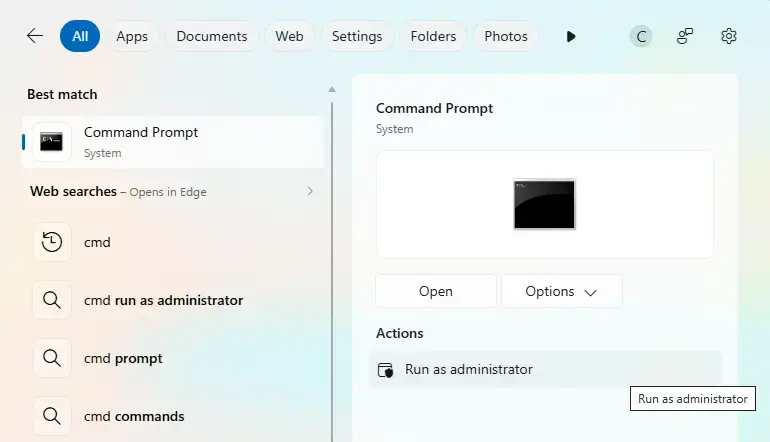
Type cmd or Command Prompt in Windows Search.
Right-click Command Prompt.
Select Run as administrator.
Approve the User Account Control prompt if it appears.
An administrator Command Prompt window will open.
Step 2: Enter the Winsock Reset Command
Type the following command and press Enter:
netsh winsock reset
Windows will attempt to reset the Winsock catalog. If the operation succeeds, you should see a confirmation message indicating that the Winsock catalog was reset successfully.
Step 3: Restart Your Computer
Save any open work and restart your PC. Restarting allows the changes to take effect fully. Once Windows loads again, reconnect to your Wi-Fi or Ethernet network and test your internet connection.
When Should You Use This Command?
The netsh winsock reset command is worth trying when you suspect a Windows networking configuration problem.
Common situations include:
Websites won't open: Your internet connection appears active, but browsers cannot reach websites.
Applications cannot connect: Some programs fail to access the internet even though other applications work.
Network issues after installing software: Connectivity problems begin after installing certain VPNs, security tools, or other software that modifies networking components.
Persistent connection problems: Basic troubleshooting, such as restarting your PC and router, hasn't resolved the issue.
These symptoms can have other causes, including DNS problems, incorrect IP settings, firewall rules, or driver issues. Use the command as one troubleshooting step rather than assuming Winsock is always responsible.
What to Do If netsh winsock reset Doesn't Fix the Problem
If your internet connection still doesn't work after restarting, try the following steps.
Reset the TCP/IP Stack
Winsock and TCP/IP are related but different networking components. Resetting TCP/IP can help when the problem involves Windows' IP networking configuration.
Open Command Prompt as administrator and run:
netsh int ip resetRestart your computer after the command completes. This operation changes TCP/IP configuration, so take note of any custom network settings before proceeding.
Renew Your IP Address
If your computer is having trouble obtaining or renewing its IP address from the network, try these commands individually in an administrator Command Prompt:
ipconfig /release
ipconfig /renew
The first command releases the current DHCP-assigned IP configuration, while the second requests a new one. Your connection may temporarily disconnect while these commands run.
Flush the DNS Cache
If Windows has outdated or incorrect DNS cache entries, flushing the cache may help resolve website lookup problems.
Run:
ipconfig /flushdnsYou should receive a message confirming that the DNS resolver cache was flushed. This command clears the local DNS cache; it does not reset Winsock or change your DNS server settings. Microsoft recommends these network commands as part of its troubleshooting guidance for persistent Wi-Fi and Ethernet connection problems.
Check Your Network Adapter
If the commands haven't helped, check whether your Wi-Fi or Ethernet adapter is working correctly.
Right-click Start and open Device Manager.
Expand Network adapters.
Find your Wi-Fi or Ethernet adapter.
Check for warning icons or device errors.
If necessary, update the driver or reinstall it using a driver package downloaded from your computer manufacturer's website.
Before uninstalling a network adapter driver, make sure you have a suitable replacement available, especially if you rely on Wi-Fi to download drivers.
Run the Windows Network Troubleshooter
Windows includes built-in troubleshooting tools that can identify common connectivity problems. On Windows 11, open Settings → System → Troubleshoot → Other troubleshooters, then run the relevant network troubleshooter if available. You can also use the Get Help app to troubleshoot internet connectivity.
If the issue persists, check your router, internet service, firewall, VPN, and any manually configured network settings.
Is netsh winsock reset Safe to Use?
For ordinary Windows troubleshooting, the command is generally safe when used correctly. It doesn't format your drive or delete your personal documents. However, it does change the Winsock catalog. Some third-party networking software may need to be repaired, reconfigured, or reinstalled if it relies on custom Winsock components.
If your computer uses a manually configured network or specialized enterprise software, check the relevant settings before making changes. Also, don't run repeated resets unnecessarily if your connection is already working.

Key Takeaways
The netsh winsock reset command is a useful troubleshooting option for Windows 10 and Windows 11 when network problems may be caused by a corrupted Winsock catalog. To use it, open Command Prompt as administrator, run the command, and restart your computer. If the issue continues, investigate other possible causes by resetting TCP/IP when appropriate, renewing your IP address, flushing the DNS cache, and checking your network adapter.
Remember that no single command can fix every internet problem. Identifying whether the issue comes from Windows, your network hardware, or your internet service will help you choose the right solution.
Frequently Asked Questions About netsh winsock reset
Find answers to common questions about netsh winsock reset, including its purpose, effects, usage, and how it helps troubleshoot network connectivity problems in Windows.
What does netsh winsock reset do in Windows?
Ans: It resets the Windows Winsock catalog to a clean state, removing custom Layered Service Provider entries that may contribute to certain network problems.
Do I need to restart my PC after running the command?
Ans: Yes, Restart your computer after the reset so the changes can take effect fully.
Does netsh winsock reset delete personal files?
Ans: No, It does not format drives or delete personal documents. However, some networking software may need reconfiguration or repair after the Winsock catalog is reset.
Can this command fix Wi-Fi connection problems?
Ans: It can help if corrupted Winsock settings are contributing to the problem. However, Wi-Fi issues caused by router faults, weak signals, incorrect passwords, or network adapter drivers may require different solutions.
What's difference between netsh winsock reset & netsh int ip reset?
Ans: netsh winsock reset resets the Winsock catalog, while netsh int ip reset resets TCP/IP configuration. They address different parts of Windows networking and may be used together when troubleshooting persistent connection problems.
Is netsh winsock reset available in Windows 10 and Windows 11?
Ans: Yes, Both Windows 10 and Windows 11 support the command. You must run it in an administrator Command Prompt or another elevated command-line environment.
Do I need an internet connection to run netsh winsock reset?
Ans: No, The command runs locally in Windows and does not require an active internet connection. You can execute it even when your PC is completely offline. However, you'll need to reconnect to your network after restarting to test whether the issue has been resolved.


Comments